
What are WhatsApp Cloud API webhooks?
WhatsApp Cloud API webhooks allow Meta to notify your application when specific events happen on your WhatsApp Business Account, such as receiving an incoming message, receiving delivery/read status updates, or getting template-related updates.
In WinSender, the webhook is used to receive incoming WhatsApp messages and keep message activity synchronized with the software.
Before you start
Webhook configuration steps
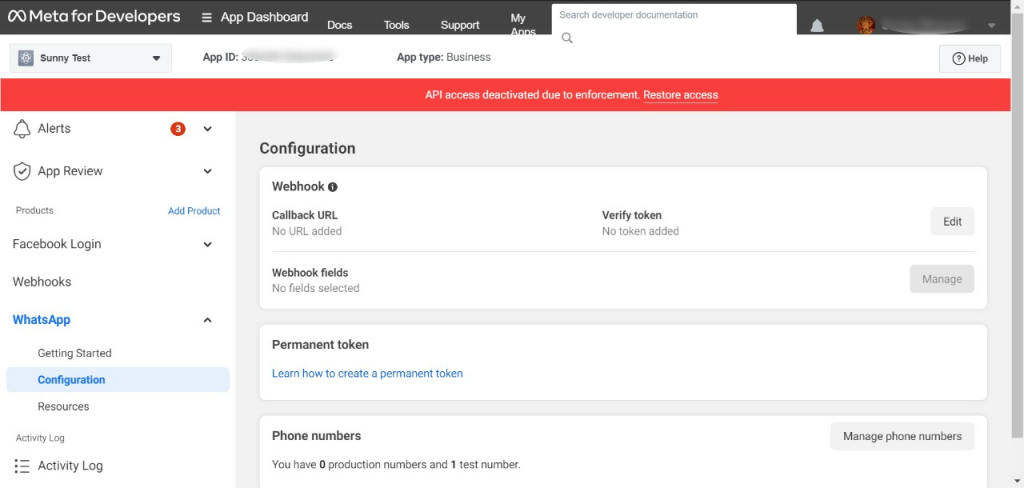
The current Meta interface may show this area as WhatsApp → Configuration or Quickstart → Configuration, depending on your dashboard layout.
Quick index
2. Go to WhatsApp → Configuration
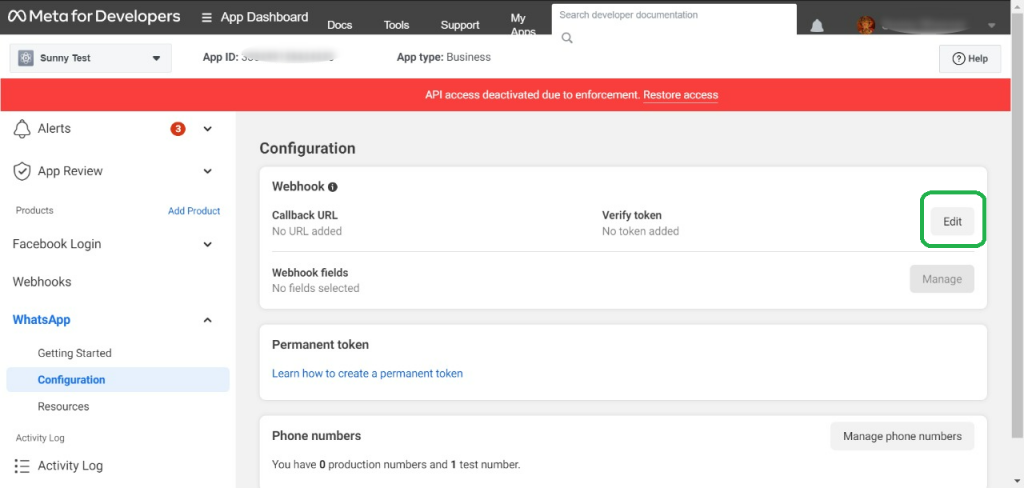
3. Edit the callback URL
4. Verify and save
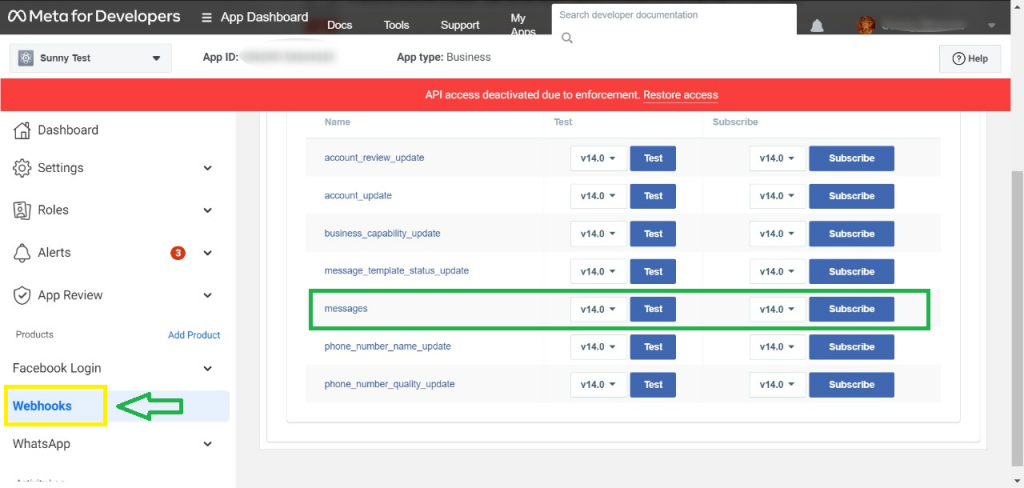
5. Manage webhook fields
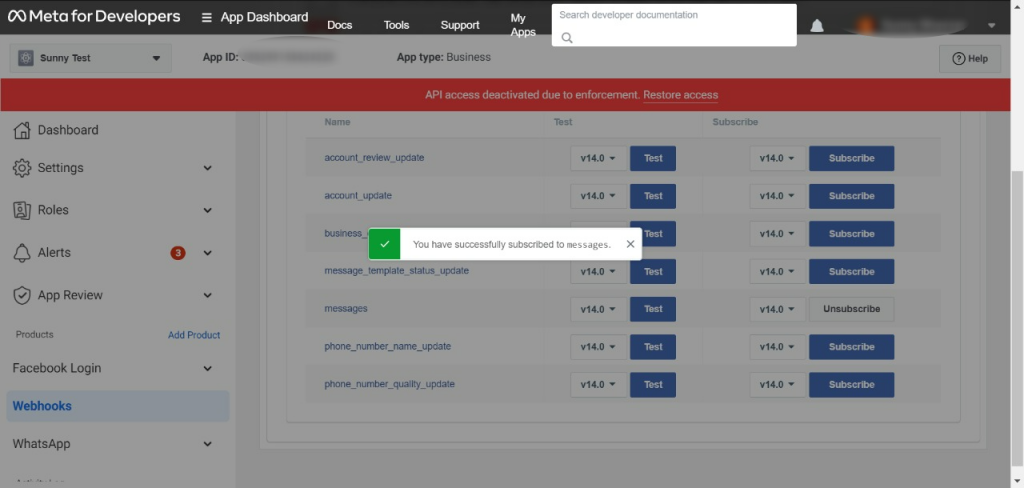
6. Subscribe to messages
7. Final check
Common problems and fixes
Meta says the callback URL could not be verified
Check that the Callback URL is public, uses HTTPS, is copied exactly, and that the Verify token is exactly the same as the one expected by the endpoint.
Incoming messages are not appearing in WinSender
Make sure the messages webhook field is subscribed. Saving the Callback URL alone is not enough; you must also subscribe to the relevant webhook field.
The dashboard layout looks different
Meta frequently updates the dashboard interface. If you cannot find the exact same screen, look for WhatsApp, Configuration, Webhook, Edit, and Manage webhook fields.
Can I use another callback URL?
Use the WinSender callback URL provided in this guide unless your WinSender installation or support team gives you a different endpoint.
Need help configuring webhooks?
If webhook verification fails or incoming messages are not received correctly, contact WinSender support and include a screenshot of your WhatsApp → Configuration page.